 Iconic
Liquid Glass icons for Mac
198 free Liquid Glass icons for 88 apps, in the glassy macOS Tahoe style, for the apps Apple didn't redesign. Every icon is a 1024×1024 PNG with a transparent background, sized for the Dock.
 Netflix
3 icons
 YouTube
3 icons
 Netflix (Dark)
2 icons
 Spotify (Dark)
2 icons
 Steam
4 icons
 Instagram
3 icons
 Notion
2 icons
 WhatsApp
2 icons
 Discord
3 icons
 VLC
2 icons
 ChatGPT
3 icons
 Roblox
2 icons
 Firefox
3 icons
 Google Chrome
2 icons
 Notion (Dark)
2 icons
 Firefox (Dark)
2 icons
 Steam (Dark)
2 icons
 DaVinci Resolve
3 icons
 Adobe Photoshop
2 icons
 Transmission
2 icons
 Perplexity
2 icons
 Final Cut Pro
2 icons
 Microsoft Excel
2 icons
 Google Drive
2 icons
 CrossOver
3 icons
 Microsoft Outlook
2 icons
 Microsoft Teams
2 icons
 Xcode
2 icons
 AppCleaner
2 icons
 Blender
5 icons
 Epic Games
3 icons
 Sublime Text (Dark)
2 icons
 GarageBand
2 icons
 Blender (Dark)
3 icons
 Adobe Illustrator
2 icons
 Ghostty
2 icons
 qBitorrent
2 icons
 Prime Video
2 icons
 BlueStacks
2 icons
 Keka
3 icons
 Ryujinx
2 icons
 Pixelmator Pro
2 icons
 Permute
2 icons
 Clash Verge
2 icons
 ImageOptim
3 icons
 IntelliJ Idea
2 icons
 Google Photos
2 icons
 Google Maps
2 icons
 Spotify
2 icons
 Raindrop.io
2 icons
 Little Snitch
2 icons
 Parallels
2 icons
 Blackmagic Disk Speed Test
2 icons
 Unity
2 icons
 VaultBar
2 icons
 Google Earth
2 icons
 Command X
2 icons
 mpv
2 icons
 Eagle
2 icons
 Whisk, Visual Code Editor App
2 icons
 Pictogram
2 icons
 Google Translate
2 icons
 Sketch Copenhagen, Diamond, Yellow
2 icons
 Infuse
2 icons
 iStat Menus
2 icons
 Radio Silence
2 icons
 iMovie
2 icons
 Heroic
4 icons
 Motrix
2 icons
 MediaInfo
3 icons
 Malwarebytes
2 icons
 Snapchat
2 icons
 Apple Maps Developer Style
2 icons
 AlDente
2 icons
 Submarine Player
2 icons
 Permute 3
2 icons
 Get Backup Pro
2 icons
 TextSniper
2 icons
 KnockKnock
3 icons
 Maccy (Dark)
2 icons
 TranscribeX
2 icons
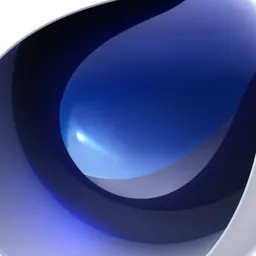 Cinema4D
2 icons
 EtreCheckPro
2 icons
 Stacher
2 icons
 TWP
2 icons
 SupaSidebar
3 icons
 Onyx
2 icons
 Crusader Kings III
2 icons
How to use Liquid Glass icons
- Pick an app above and download the icon you like.
- One click with Iconic: select the app in the sidebar, search for "liquid glass", click the icon. Iconic restarts the Dock for you.
- Or by hand: open Finder → Applications, select the app, press ⌘I, then drag the PNG onto the small icon at the top of the Info window. Full guide.
Seeing gray tiles behind old icons? Fix gray squircle icons on macOS Tahoe.
FAQ
What are Liquid Glass icons?
Liquid Glass is the translucent, glassy look Apple introduced with macOS 26 Tahoe. Apple's own apps got it; most third-party apps didn't. These community-made icons give apps like YouTube, Discord and WhatsApp the same look.
Are they free?
Yes. Every icon is a free 1024×1024 PNG with a transparent background, credited to the designer who made it. No account needed.
How do I apply a Liquid Glass icon?
Download the PNG, select the app in Finder, press Command-I and drag the PNG onto the small icon in the Info window. Iconic does it in one click, themes Apple's own apps too, and reapplies your icons after app updates.
Why do some apps show a gray square on macOS Tahoe?
macOS 26 puts icons that don't follow the new shape onto a gray squircle tile. A custom icon isn't forced onto the tile, so applying one of these fixes it.